A real extra desktop
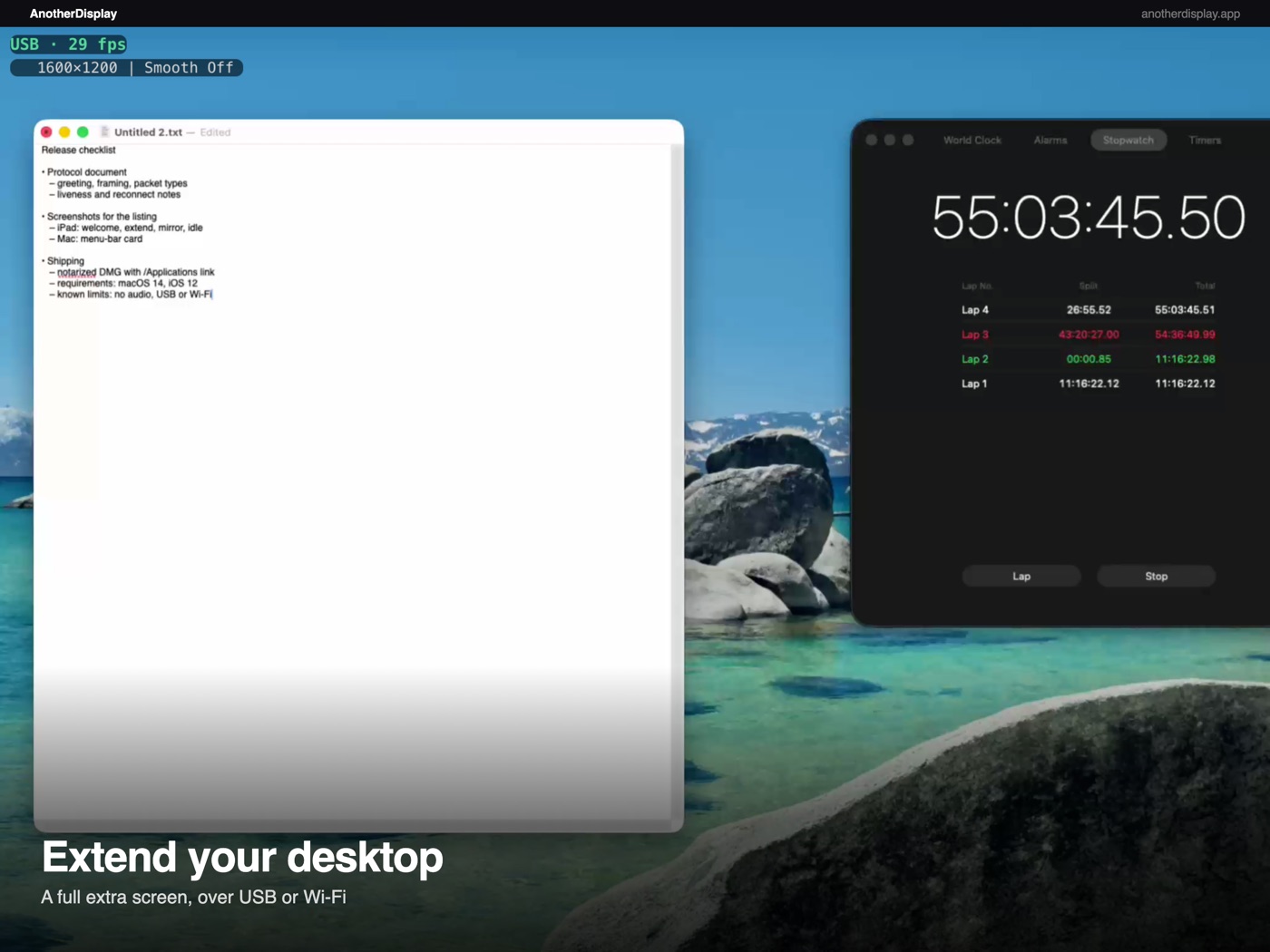
The iPad is sized to its own panel and positioned left or right of the main screen. Drag windows across and use both displays normally.
 AnotherDisplay
iPad · iPhone · macOS · iOS 13 and later
Extend your Mac desktop onto a spare iPad, or mirror it — over the charging cable or your local Wi-Fi. No dongle, no cloud service, no account.
iOS app coming soon The Mac app is available now and works with the current client.
Three steps
The Mac does the rendering. The iPad is the screen and the touch surface. Nothing is uploaded.
Download the notarized DMG, drag it to Applications and open it. Grant Screen Recording and Accessibility when macOS asks — they are what let it capture the display and move the pointer.
Keep the iPad on the same Wi-Fi as the Mac, or connect the charging cable. The Mac finds it automatically; there is no pairing code and no sign-in.
The iPad appears as a display in System Settings. Choose Extend for a larger desktop or Mirror to duplicate the main screen, then position it left or right.
What it does
Native macOS display behaviour over a direct link: windows, menus, cursors and touch.
The iPad is sized to its own panel and positioned left or right of the main screen. Drag windows across and use both displays normally.
Mirror the main display and choose Fit or Fill for the iPad's shape. Useful for presentations, or for watching something away from the desk.
Touch input goes back to the Mac: tap to click, drag to move a window, two fingers to scroll. No extra stylus or hardware.
The App Store client runs on iOS 13 and later. A separate legacy iOS 12 build keeps the 2013 iPad Air working for direct install. H.264 hardware decoding keeps the tablet cool.
USB is the lower-latency path; Wi-Fi removes the cable. The same client and the same Mac app handle both, and reconnect when the link returns.
Screen content travels directly between the Mac and the iPad. There is no account, no analytics, no advertising and no server in between.
Screenshots
Captured from the current client on an iPad Air and an iPhone. The Mac menu-bar card is shown at the end.
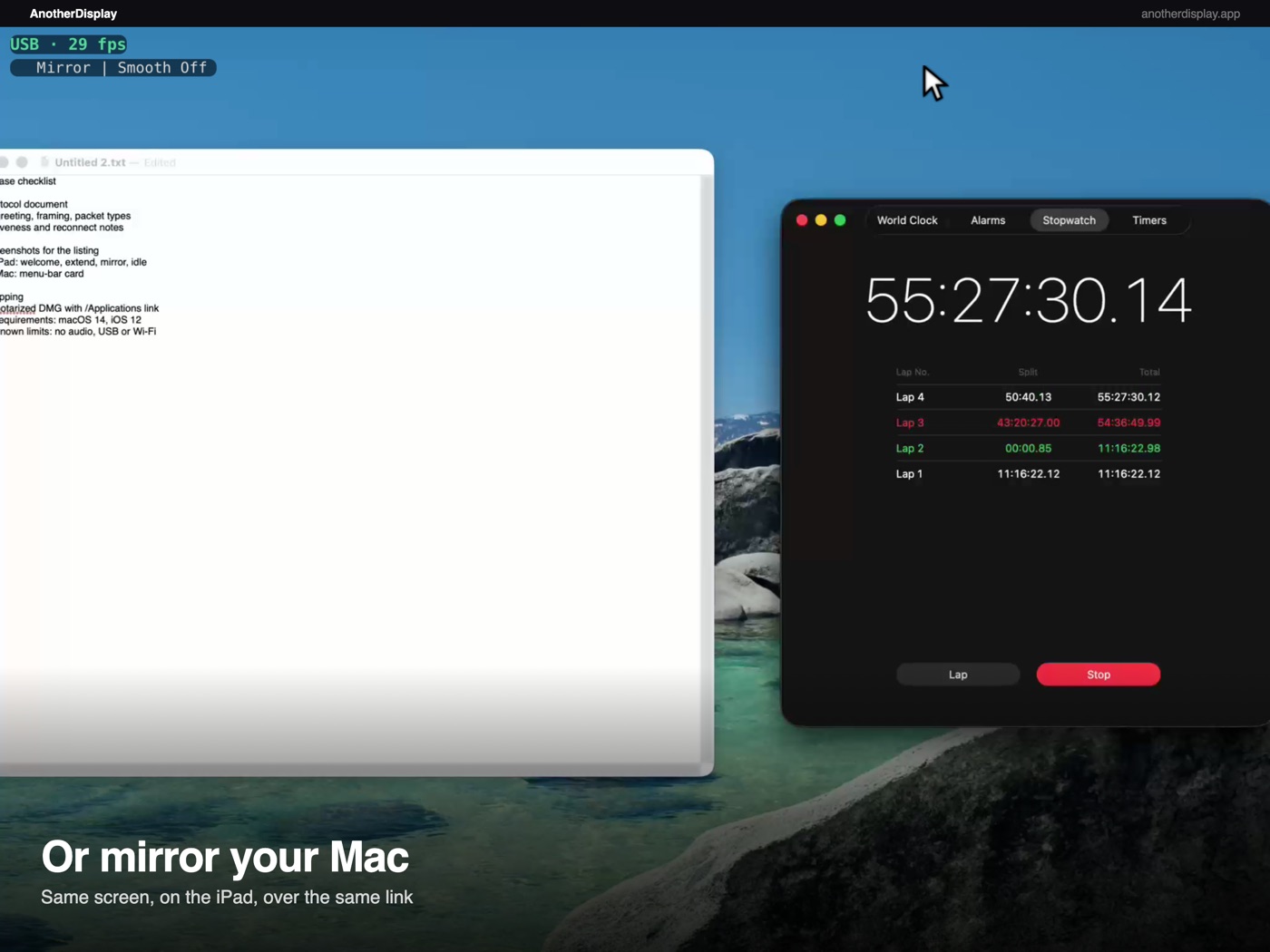
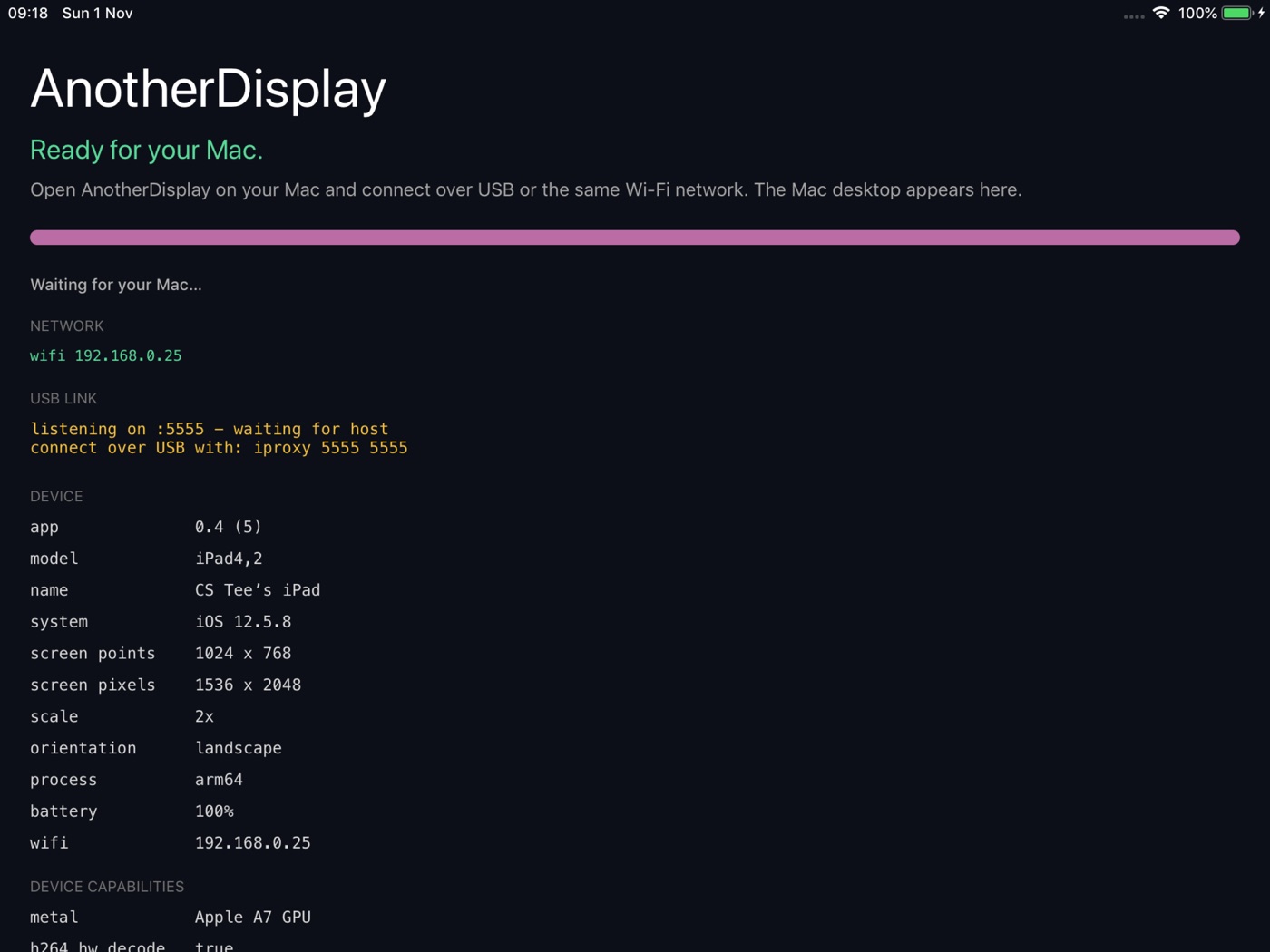
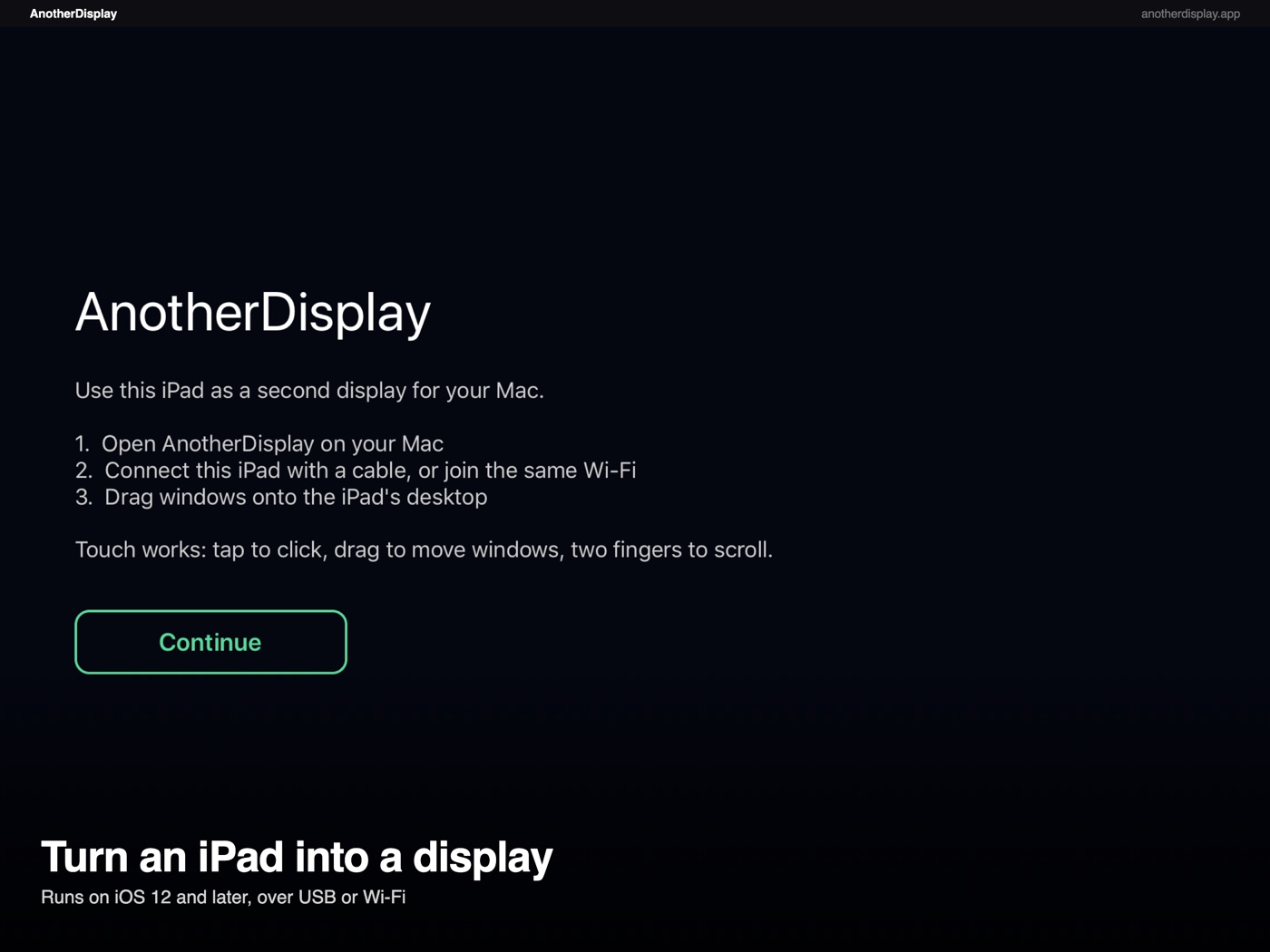
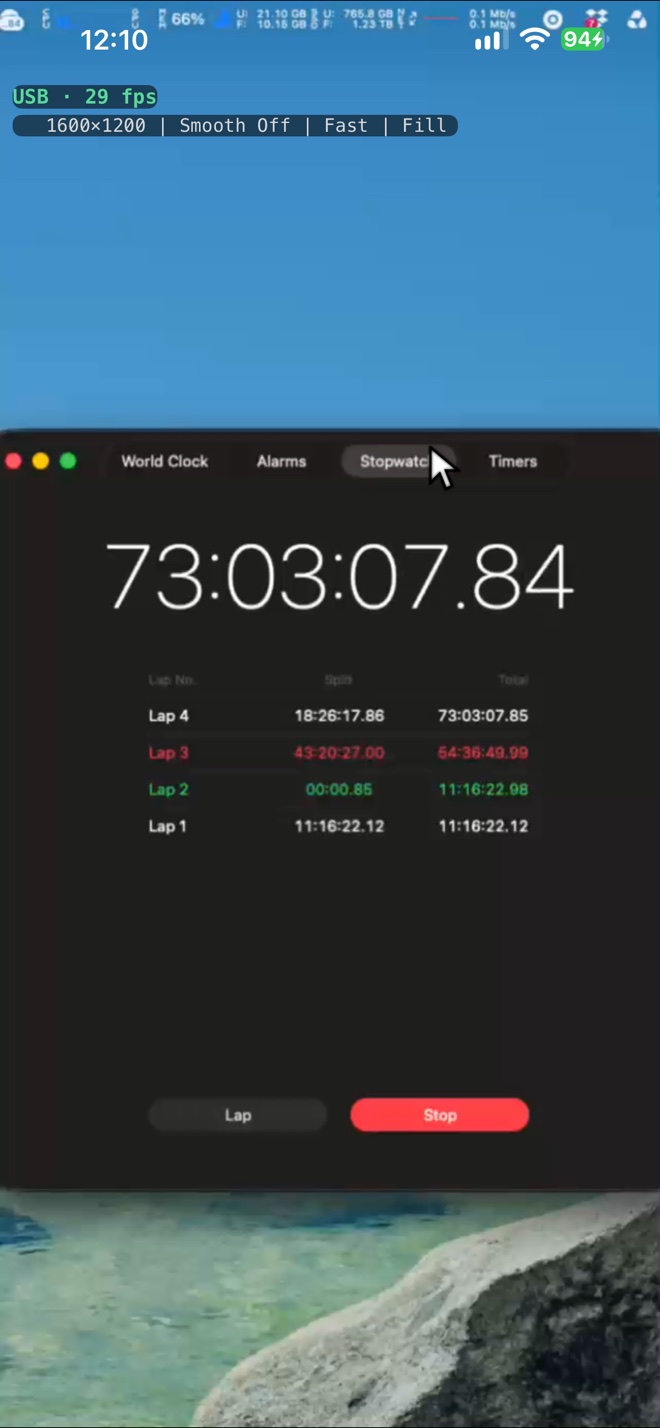
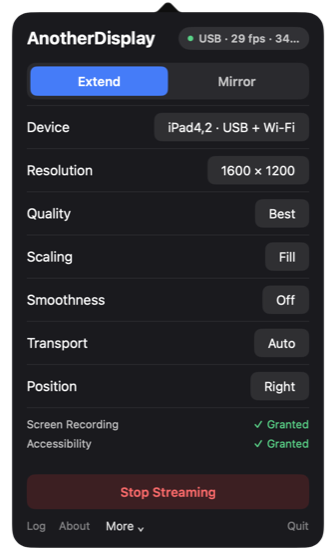
iPad and iPhone. A legacy iOS 12 build is kept for the iPad Air 1 (2013).
Apple silicon or Intel. The Mac app is Developer ID signed and notarized.
Same local network for Wi-Fi. No port forwarding, no router setup.
Questions
Yes. The Mac app is a free download and the iOS client is free. There is no account, subscription or in-app purchase. The app is not a trial and does not nag.
Yes. The Mac renders and encodes the desktop; the iPad is the display and touch surface. The iOS app opens and explains itself without a Mac, but the second-display feature needs the free Mac companion.
The App Store client requires iOS 13 or later. A separate legacy iOS 12 build is kept for the reference iPad Air 1 (2013) and installed directly, not from the App Store. The Mac app requires macOS 14 or later.
USB is the lower-latency option and also charges the iPad. Wi-Fi is convenient and needs both devices on the same network. Measured on the reference setup, USB is around 31 ms and Wi-Fi around 38 ms at 1600×1200; frame rate depends on what is moving on screen.
No. Screen content is captured on the Mac, encoded, and sent directly to the iPad over the cable or the local network. There is no cloud service, no account and no telemetry. The Mac app keeps a local log for troubleshooting; it contains connection events, not screen content.
It creates a virtual display using an API Apple does not expose publicly, and it needs Accessibility to forward touch input. Those two things are incompatible with Mac App Store sandbox rules, so it is distributed directly as a notarized download. The iOS client has no such restriction.
No. AnotherDisplay sends video and touch input only. Audio continues to play on the Mac. This is a display link, not a remote-desktop session.
One device at a time. The Mac menu lets you choose which connected device to use; switching is a menu selection, not a second simultaneous stream.
Download the Mac app, open the client, and drag a window across. It takes about a minute.